
Why Your Phone Gets Hot While Gaming: Graphics Presets, Frame Rates and Battery
Phone hot or lagging during games? Learn how graphics presets, frame-rate limits, brightness and cooling habits affect performance and battery on Android.
6 min read · Updated November 14, 2026 · By the AppKhojo team
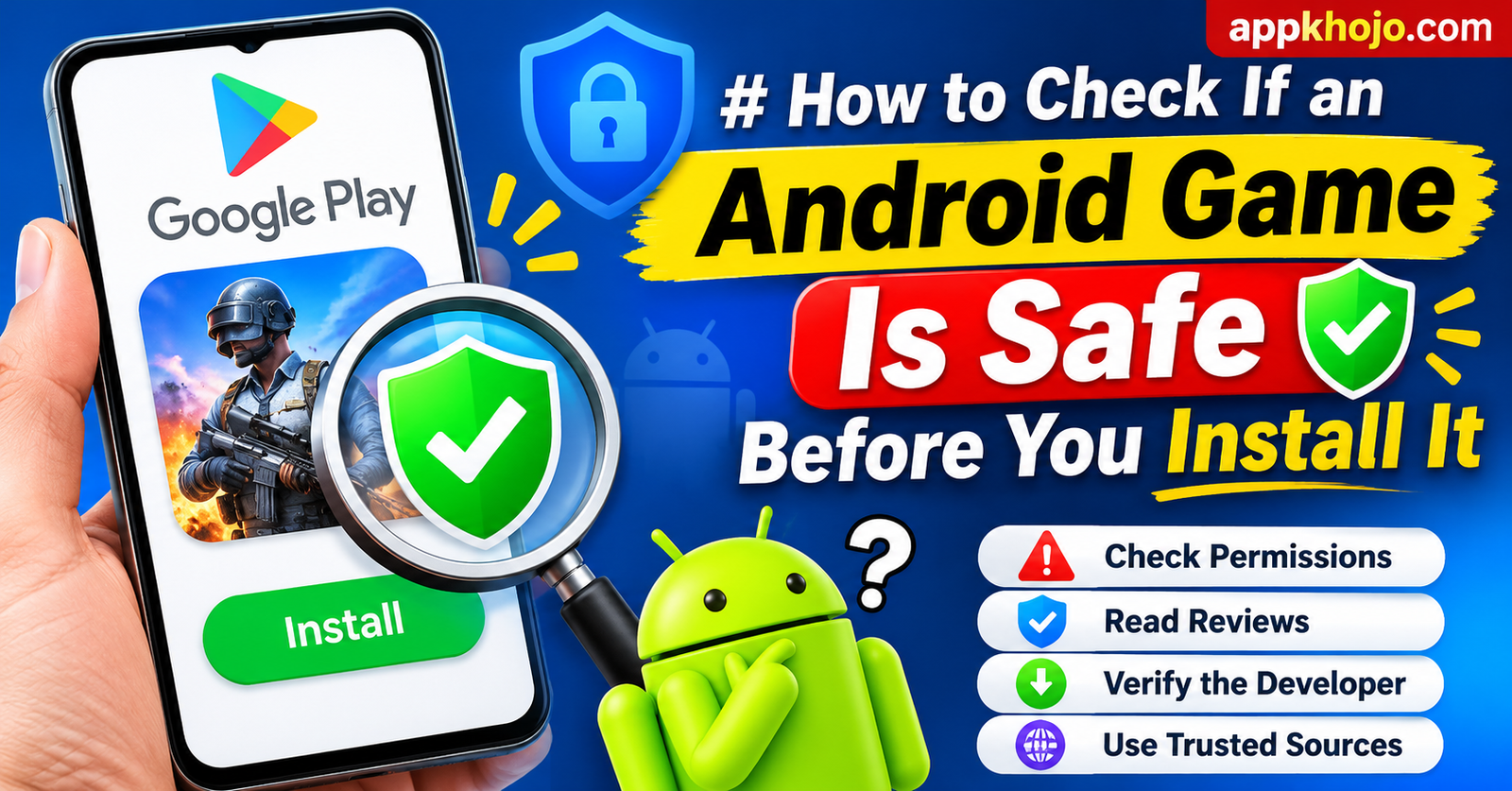
Every week, thousands of Android players download a new game because a friend mentioned it or because a trailer looked exciting. Most of those installs go smoothly, but a small share lead to unwanted ads, drained batteries, unexpected charges or, in worse cases, stolen account details. The good news is that a few simple checks, taking about two minutes, remove most of the risk. This guide walks through the habits we use ourselves before installing any game or app, and explains why each step matters.
The single most effective safety step is choosing where the file comes from. Google Play is not perfect, but listings there pass automated checks, and the app is delivered through a system that verifies updates against the publisher's signing key. Files shared through chat groups, file-sharing sites or "free premium" websites have no such protection. A modified copy can look identical to the original while quietly adding tracking code or advertising components.
This is why every Download button on AppKhojo points to the official store page and why we never host installation files. If a page promises unlimited gems, unlocked characters or "mod" versions of a popular title, treat that as a warning rather than a bargain. Those promises are almost always the bait for something else, and a modified game can also get your account banned.
On the store page, look at the developer name just under the title. Established publishers usually have several apps, a website and a support email. A brand-new developer is not automatically suspicious, since many excellent small games come from tiny studios, but the page should still look consistent. Be careful with copycats that use near-identical names or icons.
A quick comparison helps. If you are searching for a popular messaging app, confirm that the developer name matches the company you expect. If the publisher name looks unrelated, close the page and search again from the company's own website, which normally links to the correct store listing.
Star ratings are only a starting point. A game with 4.6 stars from millions of players is generally reliable, but a rating alone hides important details. Open the reviews and sort by newest, because a recent update may have introduced problems that older reviews do not mention. Then read a few of the lower ratings, looking for patterns rather than single complaints. One person reporting a crash is noise. Fifty people describing the same payment problem or forced-login bug is information.
Also look at how the developer replies. Polite, specific answers suggest an active support team. Copy-pasted replies or no replies at all usually mean you should expect little help if something goes wrong. For newer games with few reviews, our guides say so openly, and we suggest waiting until more feedback appears if you are unsure.
Permissions are the clearest signal of what an app wants to do. A messaging app needs access to contacts and the microphone, and a camera app needs the camera. A simple puzzle game, however, has no reason to request your contacts, call logs or precise location. Android lets you grant most permissions only while the app is in use, or deny them completely, and many games work perfectly well without optional ones.
To review permissions after installing, open Settings, choose Apps, select the game and tap Permissions. Anything that does not match the game's purpose can be switched off. If the game refuses to start without an unrelated permission, that is a good reason to uninstall it and look for an alternative.
Google Play Protect is built into Android devices that include Google services. It scans apps from Google Play and other sources for harmful behaviour and can warn you or disable apps that look dangerous. Keep it turned on. You can check its status by opening the Play Store, tapping your profile picture and choosing Play Protect.
Safety is not only about malware. Many games are free to download but earn money through advertising, purchases, subscriptions or random reward systems. None of these is automatically bad, yet you should know what you are getting into. On the store page, look for the "In-app purchases" and "Contains ads" labels, which appear near the top. Inside the game, the shop screen tells you far more: prices of currency packs, whether items are guaranteed or random and whether an offer is time-limited to create pressure.
If you share a phone with children or family members, turn on purchase authentication in the Play Store settings so that every purchase requires a password or biometric check. This takes seconds and prevents the most common cause of surprise bills.
Many games let you sign in with Google, Facebook or an email address so your progress is saved. Choosing a login through a recognised provider is usually safer than creating a new password on a small game's own server. Where you do create a password, make it unique rather than reusing one from your email. A password manager makes this easy, and many phones now include one.
Never share one-time codes, account recovery links or passwords with anyone who contacts you in the game chat, even if they claim to be support staff. Genuine support teams do not ask for them. If a stranger offers to boost your account or sell you rare items outside the game, decline. These transactions are a favourite route for scams, and they usually breach the game's terms.
If you suspect that you installed something harmful, uninstall it first, then run a Play Protect scan, change the passwords of any accounts you used inside the game and review your bank or wallet statements. If a purchase happened by mistake, contact Google Play support promptly, because refund windows are limited and rules differ by product type. For problems that look like a policy violation by the publisher, you can report the app from its store page.
Staying safe does not require technical skill. It requires a short pause before pressing Install, and a willingness to say no when something feels off. Our own guides follow the same philosophy: we describe how a game works, mention its advertising and purchase model where the publisher does, and always send you to the official page so you decide with the full picture in front of you.
Keep reading
Phone hot or lagging during games? Learn how graphics presets, frame-rate limits, brightness and cooling habits affect performance and battery on Android.
A star rating is not a verdict. Learn how to read Play Store ratings, install ranges and recent reviews together so you can judge an Android game before you download.
New to roguelikes on Android? Learn how runs, random upgrades and permanent progression work in card, shooter and puzzle roguelikes, with beginner habits that help.
Browse our game guides by genre and see what each one is really like.